Developer How-To Series
The Join Activity Pattern
June, 2026
The Join activity pattern is one of the most powerful operators in the Visual Event Handler toolset.
Using this task allows separate event streams to combine, based on a common property constraint. Correlations like these help drive decisions in applications that may not be obvious from a single source.
For example, from Vantiq’s Developer Foundations class, students took in sensor events from 5 HVAC pumps. Initially, the data came in two separate streams – one for the temperature and one for the revolution speed. If the two event streams are seen separately, the application won’t get the full picture of how the pumps are functioning.
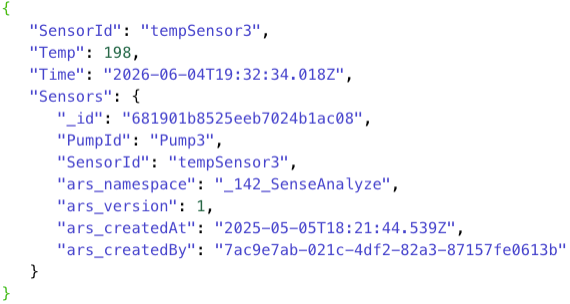
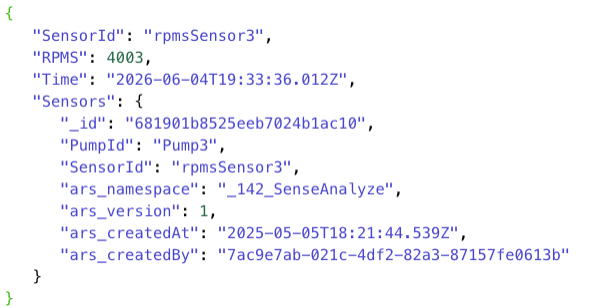
Fortunately, the streams of data have something in common – the PumpId, so we used a Join activity pattern to combine the streams. This correlation gave the application the full picture of pump health.
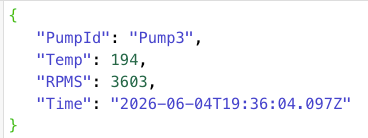
But, this isn’t (yet) one of those “and the data lived happily ever after” stories. Developers need to understand exactly how the Join activity performs, to ensure that the joined events provide the intended data.
The constraints properties are evaluated as a logical AND: every constraint must evaluate to true for the join to fire, such as EnrichTemp.Sensors.PumpId == EnrichRPMS.Sensors.PumpId. The first expression will be evaluated first, followed by the next and so on that must match in order to produce the single combined stream. Visually, the streams will display in the VEH from left to right to show the join order.
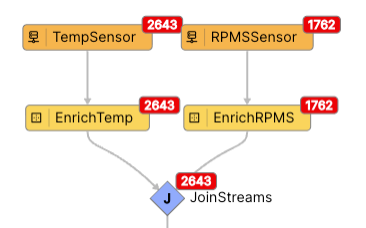
Constraints can refer to a single stream (to filter that stream’s events before correlation) or to events from two streams together (to express the correlation itself); the AND semantics apply uniformly across both kinds.
The within duration property defines the time window in which matching events must occur on all streams being combined. If a matching event fails to arrive within the window, the Join emits a partial event on its timeout secondary output, allowing the rule to react to the absence of correlation as well as to its presence.
Event frequency is gated by the leftmost stream:
- If two events arrive on the leftmost stream and only one matching event arrives on a right-hand stream within the within duration window, both leftmost events join against that single right-hand event and two combined output events are produced.
- If only one event arrives on the leftmost stream and two matching events arrive on a right-hand stream, only one combined output event is produced, because there is no second leftmost event to drive a further join.
The timeout secondary output fires only when an event on the leftmost stream fails to find a match on every other parent stream within the window. Events that arrive on a right-hand stream and never find a matching leftmost event are silently discarded without producing a timeout.
Here’s a Visual Event Handler setup, and how the Join behaved in different scenarios.The two parent streams are TempEvent (leftmost, and therefore the pacing stream) and PressureEvent, correlated on a shared pumpId with a within duration of one minute:
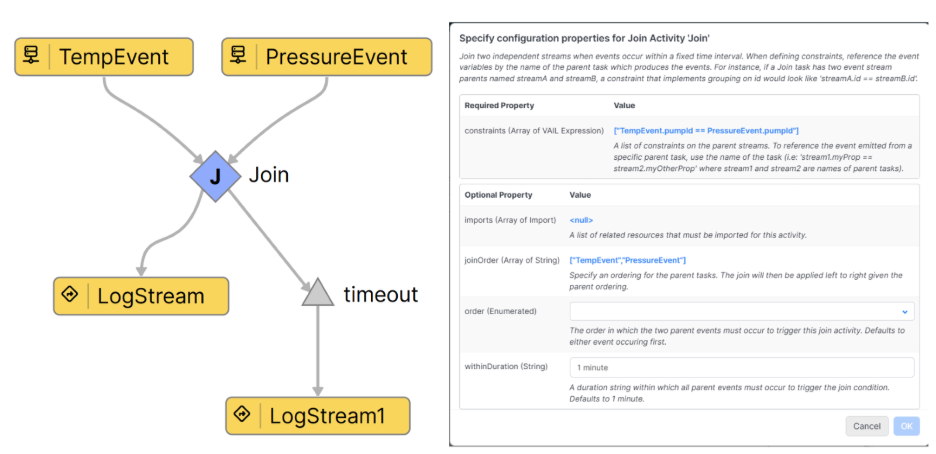
And here’s the table of what happens, given the listed occurrences:
| Inbound event sequence (within 1 min, same pumpId) |
Output produced by the Join |
Why |
| TempEvent → PressureEvent |
One combined event on the primary output:
{TempEvent={pumpId=1, temp=30}, PressureEvent={pumpId=1, pressure=2000}} |
The TempEvent opens a pending join attempt. The PressureEvent arrives inside the within duration window and satisfies the correlation, so the join fires once on the primary output. |
| TempEvent → PressureEvent → PressureEvent |
One combined event on the primary output:
{TempEvent={pumpId=1, temp=35}, PressureEvent={pumpId=1, pressure=2500}}
The second PressureEvent produces no output. |
The first PressureEvent satisfies the pending TempEvent and the join fires. After that there is no further leftmost event to drive another join, so the second PressureEvent has nothing to pair with and is silently discarded when its window expires. |
| PressureEvent → PressureEvent → TempEvent |
One combined event on the primary output:
{TempEvent={pumpId=1, temp=40}, PressureEvent={pumpId=1, pressure=1000}} |
Neither PressureEvent can drive a join on its own — only the leftmost stream paces the Join. When the TempEvent arrives it correlates with a PressureEvent that is still inside the window and the join fires once. The remaining PressureEvent has no further leftmost event to pair with and is silently discarded. |
| TempEvent → TempEvent → PressureEvent |
Two combined events on the primary output, both referencing the same PressureEvent:
{TempEvent={pumpId=1, temp=20}, PressureEvent={pumpId=1, pressure=5000}}
{TempEvent={pumpId=1, temp=10}, PressureEvent={pumpId=1, pressure=5000}} |
Each TempEvent is its own leftmost event and opens its own pending join attempt. Both attempts are still waiting when the PressureEvent arrives, and each finds a match within its window — so two combined events are produced against the same PressureEvent. The number of outputs is governed by the leftmost stream, not by the number of right-hand events. |
| TempEvent only (no PressureEvent within 1 min) |
One partial event on the timeout secondary output, containing the unmatched TempEvent. Nothing is produced on the primary output. |
A leftmost TempEvent opened a pending join and its window expired without a matching PressureEvent. That is exactly the condition the timeout output is designed to surface, allowing the rule to react to the absence of correlation. |
| PressureEvent only (no TempEvent within 1 min) |
No output on either the primary or the timeout output. |
Events on a right-hand stream never initiate a join attempt. With no leftmost TempEvent to pace it, the PressureEvent is held until its window expires and is then silently discarded. The timeout output does not fire because it only surfaces unmatched leftmost events. |
Join is a fantastic pattern to use when correlating data for analysis and processing in Vantiq applications. Just make sure to keep in mind exactly how it’s designed to work!
A couple of side notes:
It is useful to contrast Join with the patterns it is most often confused with:
- Merge combines events from multiple streams into a single downstream stream without correlating them. Use Merge when the rule should treat events from several sources uniformly; use Join when the rule needs the events to be matched.
- Enrich and Cached Enrich attach data that lives in a persistent Type to an event. Use Enrich when the additional data is at rest in storage; use Join when the additional data is itself a transient event on another live stream.
Attachments:
You must be
logged in to view attached files.


Developer How-To Series
The Join Activity Pattern
June, 2026
The Join activity pattern is one of the most powerful operators in the Visual Event Handler toolset.
Using this task allows separate event streams to combine, based on a common property constraint. Correlations like these help drive decisions in applications that may not be obvious from a single source.
For example, from Vantiq’s Developer Foundations class, students took in sensor events from 5 HVAC pumps. Initially, the data came in two separate streams – one for the temperature and one for the revolution speed. If the two event streams are seen separately, the application won’t get the full picture of how the pumps are functioning.
Fortunately, the streams of data have something in common – the PumpId, so we used a Join activity pattern to combine the streams. This correlation gave the application the full picture of pump health.
But, this isn’t (yet) one of those “and the data lived happily ever after” stories. Developers need to understand exactly how the Join activity performs, to ensure that the joined events provide the intended data.
The constraints properties are evaluated as a logical AND: every constraint must evaluate to true for the join to fire, such as EnrichTemp.Sensors.PumpId == EnrichRPMS.Sensors.PumpId. The first expression will be evaluated first, followed by the next and so on that must match in order to produce the single combined stream. Visually, the streams will display in the VEH from left to right to show the join order.
Constraints can refer to a single stream (to filter that stream’s events before correlation) or to events from two streams together (to express the correlation itself); the AND semantics apply uniformly across both kinds.
The within duration property defines the time window in which matching events must occur on all streams being combined. If a matching event fails to arrive within the window, the Join emits a partial event on its timeout secondary output, allowing the rule to react to the absence of correlation as well as to its presence.
Event frequency is gated by the leftmost stream:
The timeout secondary output fires only when an event on the leftmost stream fails to find a match on every other parent stream within the window. Events that arrive on a right-hand stream and never find a matching leftmost event are silently discarded without producing a timeout.
Here’s a Visual Event Handler setup, and how the Join behaved in different scenarios.The two parent streams are TempEvent (leftmost, and therefore the pacing stream) and PressureEvent, correlated on a shared pumpId with a within duration of one minute:
And here’s the table of what happens, given the listed occurrences:
{TempEvent={pumpId=1, temp=30}, PressureEvent={pumpId=1, pressure=2000}}
{TempEvent={pumpId=1, temp=35}, PressureEvent={pumpId=1, pressure=2500}}
The second PressureEvent produces no output.
{TempEvent={pumpId=1, temp=40}, PressureEvent={pumpId=1, pressure=1000}}
{TempEvent={pumpId=1, temp=20}, PressureEvent={pumpId=1, pressure=5000}}
{TempEvent={pumpId=1, temp=10}, PressureEvent={pumpId=1, pressure=5000}}
Join is a fantastic pattern to use when correlating data for analysis and processing in Vantiq applications. Just make sure to keep in mind exactly how it’s designed to work!
A couple of side notes:
It is useful to contrast Join with the patterns it is most often confused with:
Attachments:
You must be logged in to view attached files.